Managing Zoom Phone numbers
Zoom Phone Number Management capabilities include loading and removing numbers for Customer deployments.
|
1.
|
From the Customer Actions drop-down list, select Zoom > Open Number Management Page. |
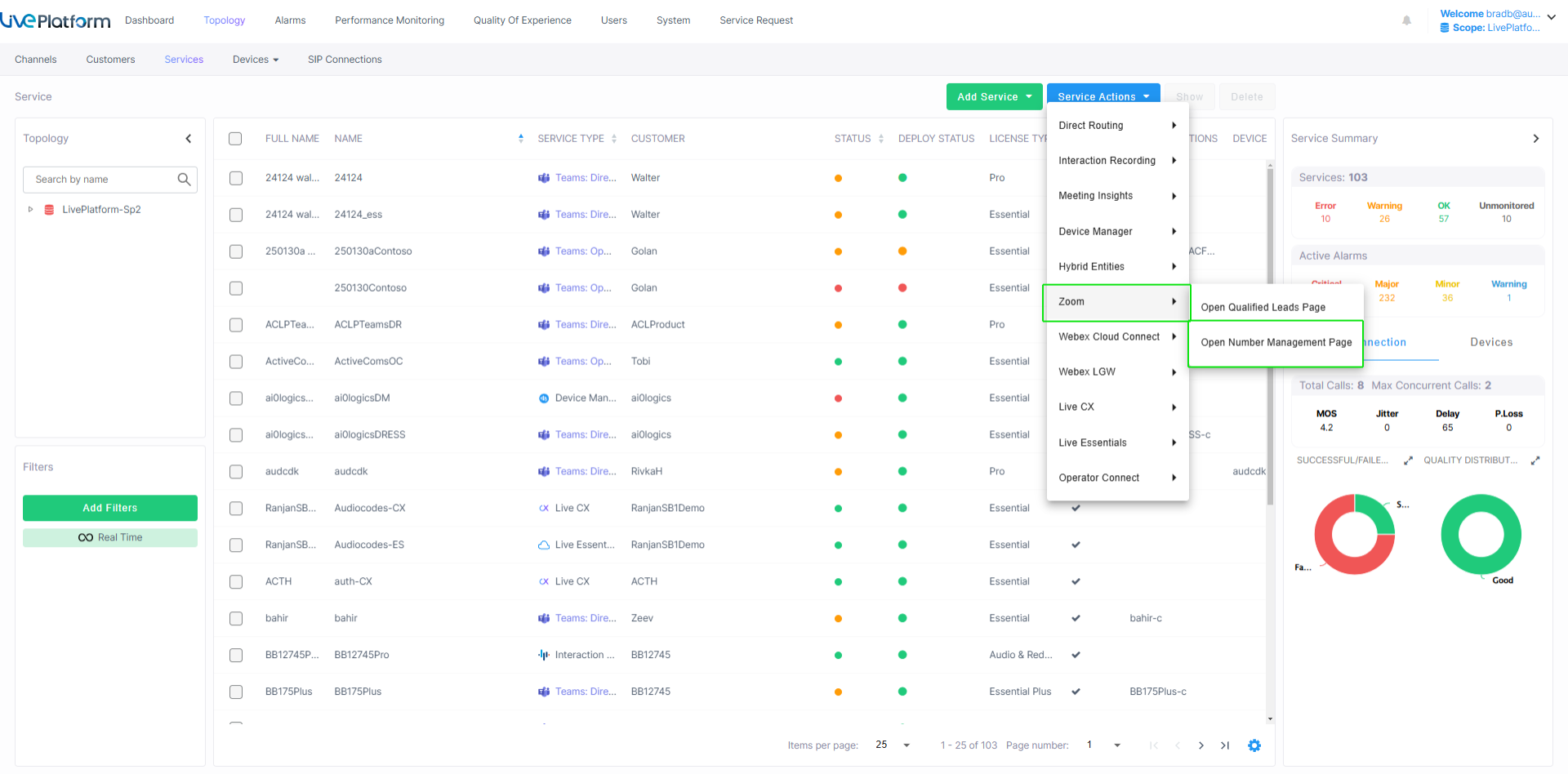
The Numbers Management page opens.
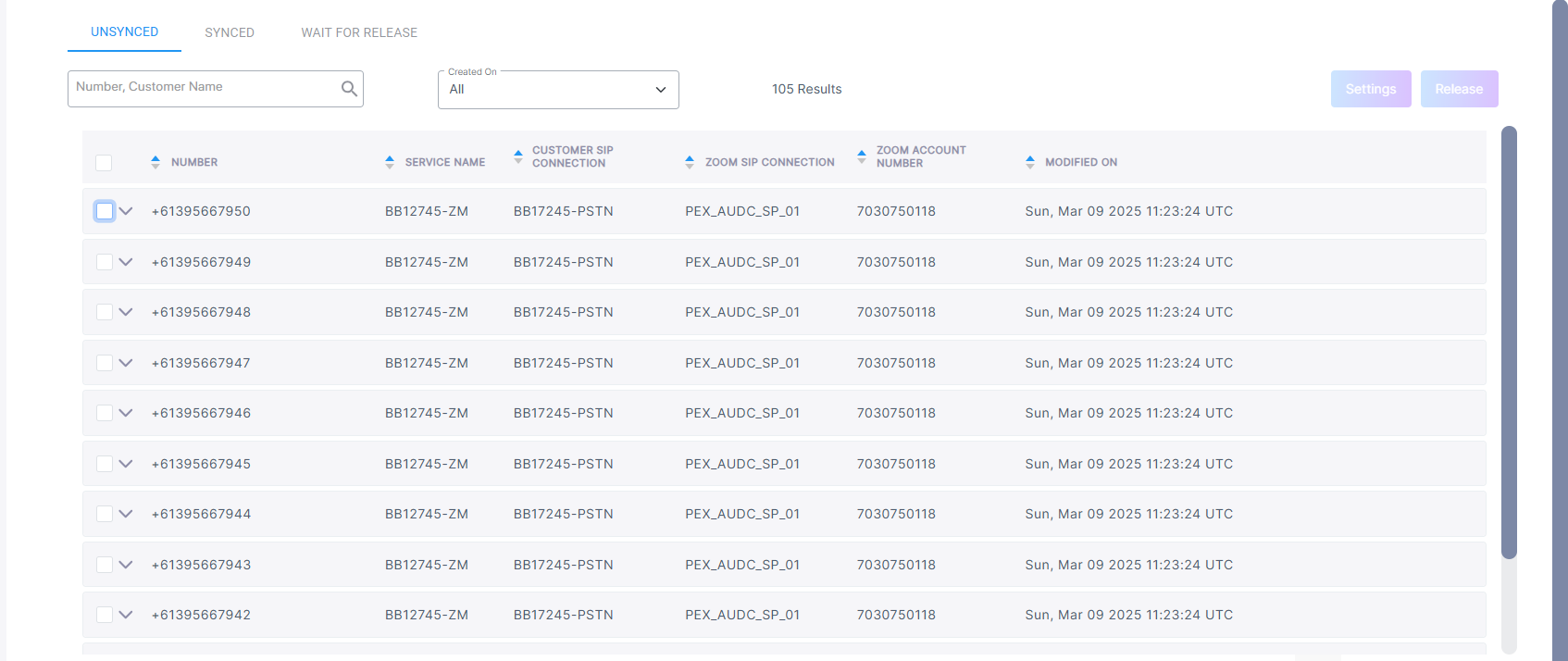
This page is divided into the following tabs:
|
■
|
Synced Numbers: Numbers that have been synchronized by customers in the Live Cloud for Zoom app. |
|
■
|
Unsynced Numbers: Numbers that have been added by the Provider Exchange, however have not yet been synchronized by the Provider Exchange. |
|
■
|
Wait for Release: Unsynced numbers that have been released by the Provider Exchange, however have not yet been released by the customer. |
The table below describes the fields in this screen.
Numbers Management
|
|
|
| Number |
Loaded customer number. |
| Customer Name |
Customer name defined in the Onboarding. |
| Customer SIP Connection |
SIP Connection of the customer that is attached to the service. |
| Zoom Account Number |
Customer Zoom account number. |
| Modified On |
UTC Date and time when the number was uploaded to the customer. |
|
➢
|
To export numbers to a CSV file: |
|
1.
|
In the Numbers Management page, click Export CSV. The button is unavailable when the table has no numbers. |
The Export CSV dialog opens. If the table is already filtered to a customer, that customer is selected.
|
2.
|
From the drop-down list, select the customer whose numbers you want to export, and then click Export. You can export the numbers of one customer at a time. |
The CSV file is downloaded. The file name has the format <name>_yyyyMMdd_HHmmss.csv.
The file includes the numbers of all the tabs, with the following columns: Number, Service Name, Customer SIP Connection, Associated Trunk, Zoom SIP Connection, Zoom Account Number, Number type, Status, Location and Modified On. Columns that are not relevant for your operator type or the service type are not included. For example, the Location column is included only for Webex services, and customer operators do not receive the Service Name column.
|
●
|
Customer operators do not see the dialog; the numbers of their own customer are exported directly. |
|
●
|
Channel operators can export only the customers of their own channel. |
|
●
|
You can export up to 200,000 numbers at a time. If the customer has more numbers, the message "Too many numbers to export. Narrow the filter and try again." is displayed. |
|
●
|
If your session has expired, the message "Your session has expired. Please close the tab and open again from Live Platform." is displayed. |
See the following:
|
■
|
Importing Numbers from Zoom Admin App |
|
■
|
Uploading Numbers directly from Live Platform |